Sending a Quote
Sending a quote requires the carrier to enter pickup/delivery locations, and accessorials and then review the Quote Summary before entering the customer’s email and sending.
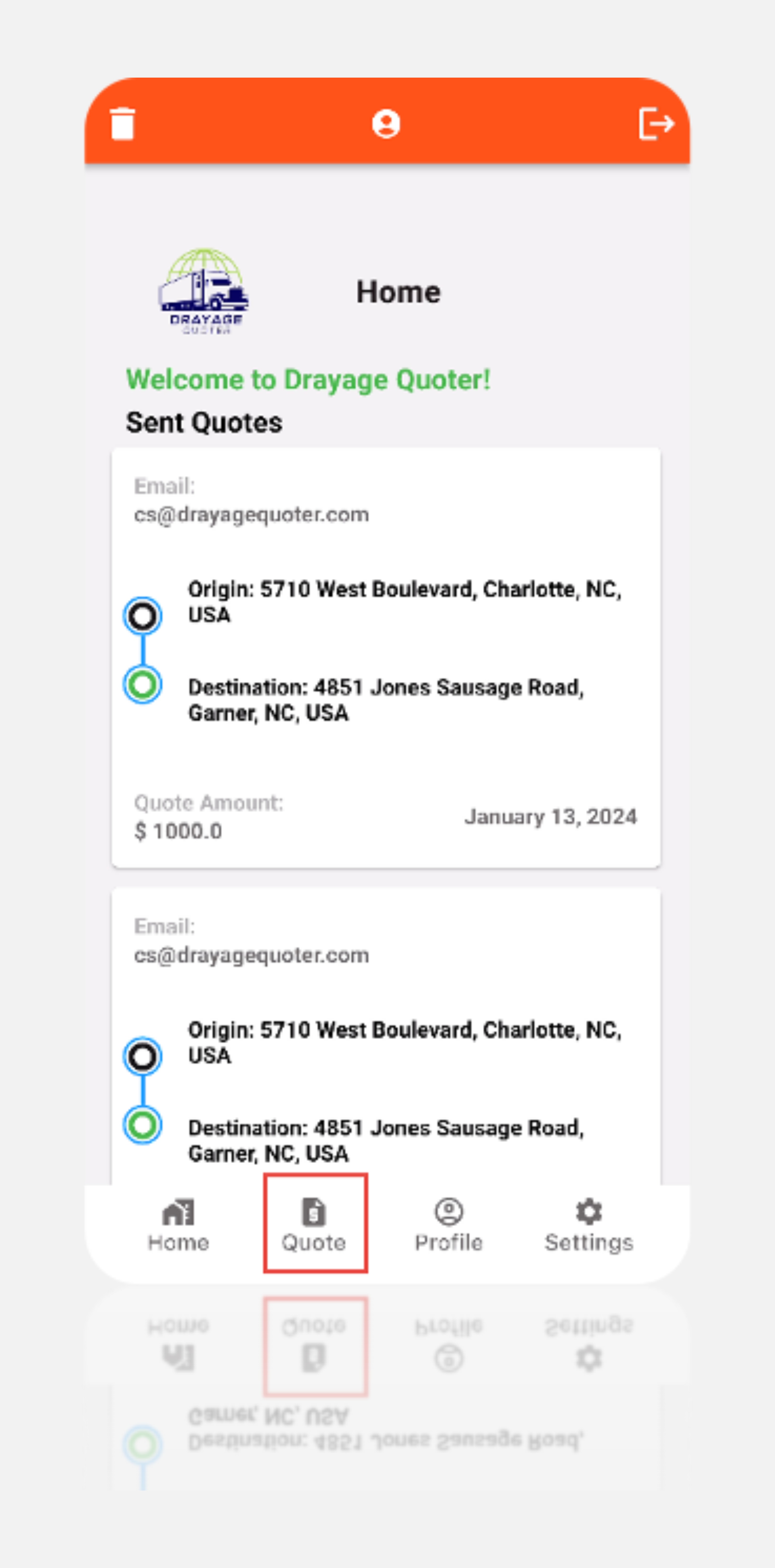
Now that we’ve configured our profile and input our settings in the app, it’s time to generate a quote. The primary functionality of the Drayage Quoter application is for Carriers to respond to drayage quote requests from Customers. Navigate to the 'Quote' option at the bottom center of the screen.
On this page, you can specify your pickup and delivery locations. The system calculates the total miles for this trip.
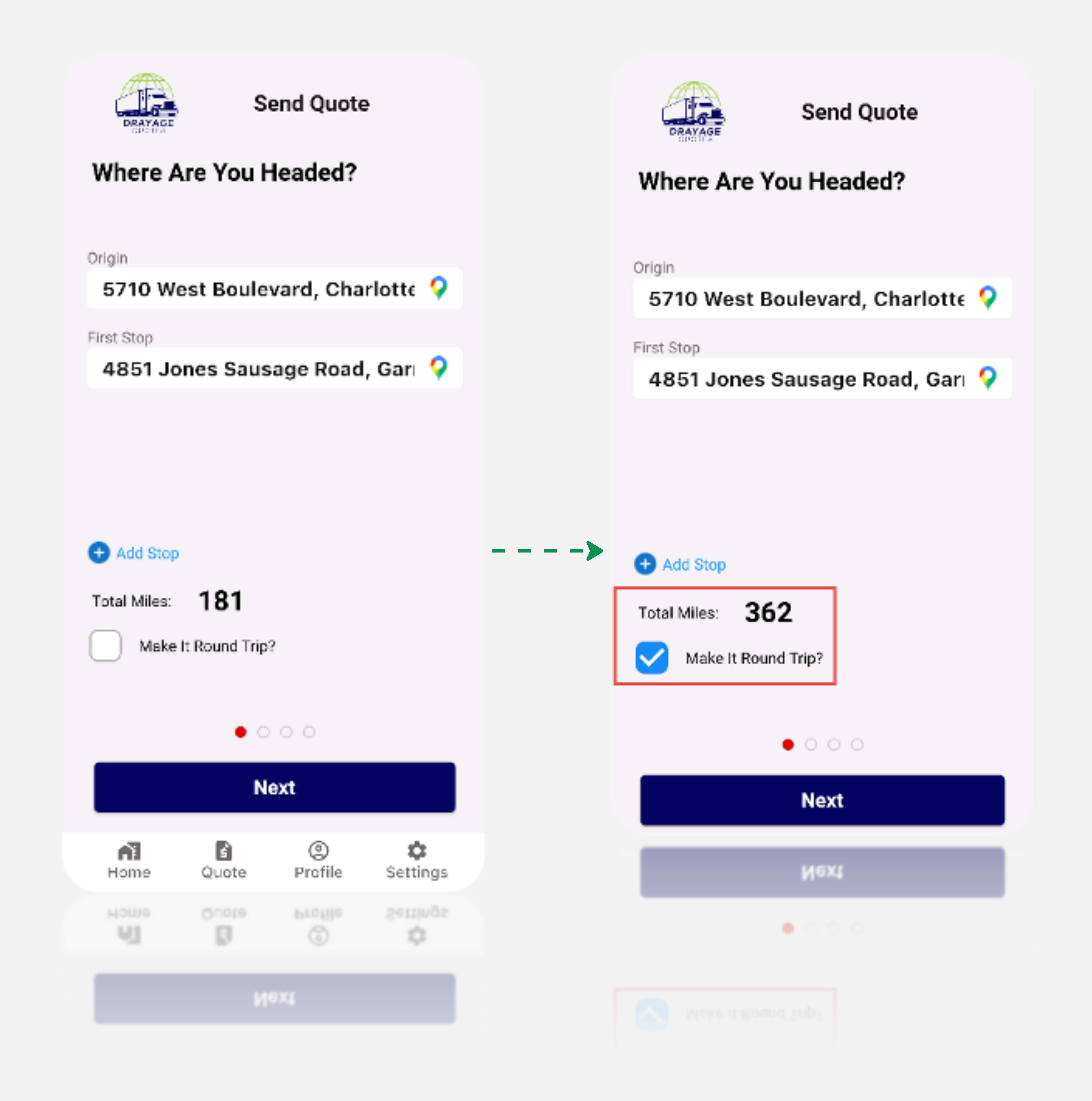
In many drayage scenarios, you often need a round trip. To account for this, ensure to click on 'Make it a Round Trip. Enabling this option will double the miles, factoring in both the journey to Jones Hospital and the return to West Boulevard via Join Sausage Road.
You can also add multiple stops by clicking on the “Add Stop” option on the screen. After clicking the button system will request you to add address from the address drop down.
Once you've verified the details and everything looks good, proceed by clicking 'Next.'