Drayage Quoter

| Description | The complete user manual for Drayage Quoter Mobile Application. |
| Author(s) | Drayage Quoter Mobile Application |
| Copyright | Copyright © 2024 Drayage Quoter |
🏠 Home Page

Getting Started
Know how you can get started with Drayage Quoter.

System Requirements
Get the system requirements for both Mobile and Web versions.

Registration Process
Start register to use the app.

Login and Authentication
After create an accoun, you can login to the app.

User Dashboard
Check the user dashboard of the app.

Setting up Profile
Start setting up your profile.

Settings
Understand the general settings for your account.

Accessorials
Start add all accessorials for your account.

Sending a Quote
Learn how you can send a quote.

Adding Accessorials to Your Quote
Know how you can add accessorials to your quote.

Quote Summary Page
Check the quote summary page when sending a quote.

All In Rate Feature
Check the all in rate feature.

Creating a Quote with Multiple Stops
Learn How to create a quote with multiple stops.

Sending Quote to Customer
Learn How to send the quote to the customer.
🚀 Introduction
About Drayage Quoter Mobile Application
Drayage Quoter Mobile Application is a powerful mobile and web-based application designed to simplify the process of obtaining quotes for drayage services. Whether you are a shipper or carrier, this platform streamlines communication and facilitates efficient drayage service requests. The mobile application can be access via link “https://drayagequoter.app”.
Purpose of the User Manual
This user manual provides comprehensive guidance on how to use the Drayage Quoter Mobile Application effectively. It aims to assist users in understanding the application's features, functionalities, and navigation to ensure a seamless experience.
Getting Started
Before you begin using the Drayage Quoter mobile application, it's essential to familiarize yourself with the system requirements and create an account. The following sections will guide you through the setup process and introduce you to the application's key features.
💻 System Requirements
Supported Devices
The Drayage Quoter mobile application seamlessly operates on both iOS and Android devices, ensuring a versatile user experience. Whether you have an iPhone, iPad, or an Android smartphone or tablet, you can take advantage of the Drayage Quoter mobile application’s functionalities.
To guarantee optimal performance and a smooth user interface, it's essential to verify that your smartphone or tablet aligns with the minimum system requirements specified by the Drayage Quoter mobile application. These requirements ensure that the application functions efficiently and delivers a reliable experience on your chosen device. Before downloading and installing the Drayage Quoter mobile application, take a moment to review and confirm that your device meets these specifications. This step is crucial in maximizing the application's performance, responsiveness, and overall usability on your preferred mobile platform.
Supported Browsers
For web-based access, Drayage Quoter supports the latest versions of popular web browsers such as Google Chrome, and Safari. The web version can be access via link “https://drayagequoter.com”.
💼 Account Setup ↵
📝 Registration Process
To access the full features of the Drayage Quoter mobile application, you must create an account. Follow these steps to register:
- Download the Drayage Quoter mobile application from the App Store (for iOS) or Google Play Store (for Android).
- Open the app and click on "Sign Up" to create a new account.
- Enter your email address and create a strong password.
- Provide the required information for account verification.
- Once verified, your account is ready for use.
🔐 Login and Authentication
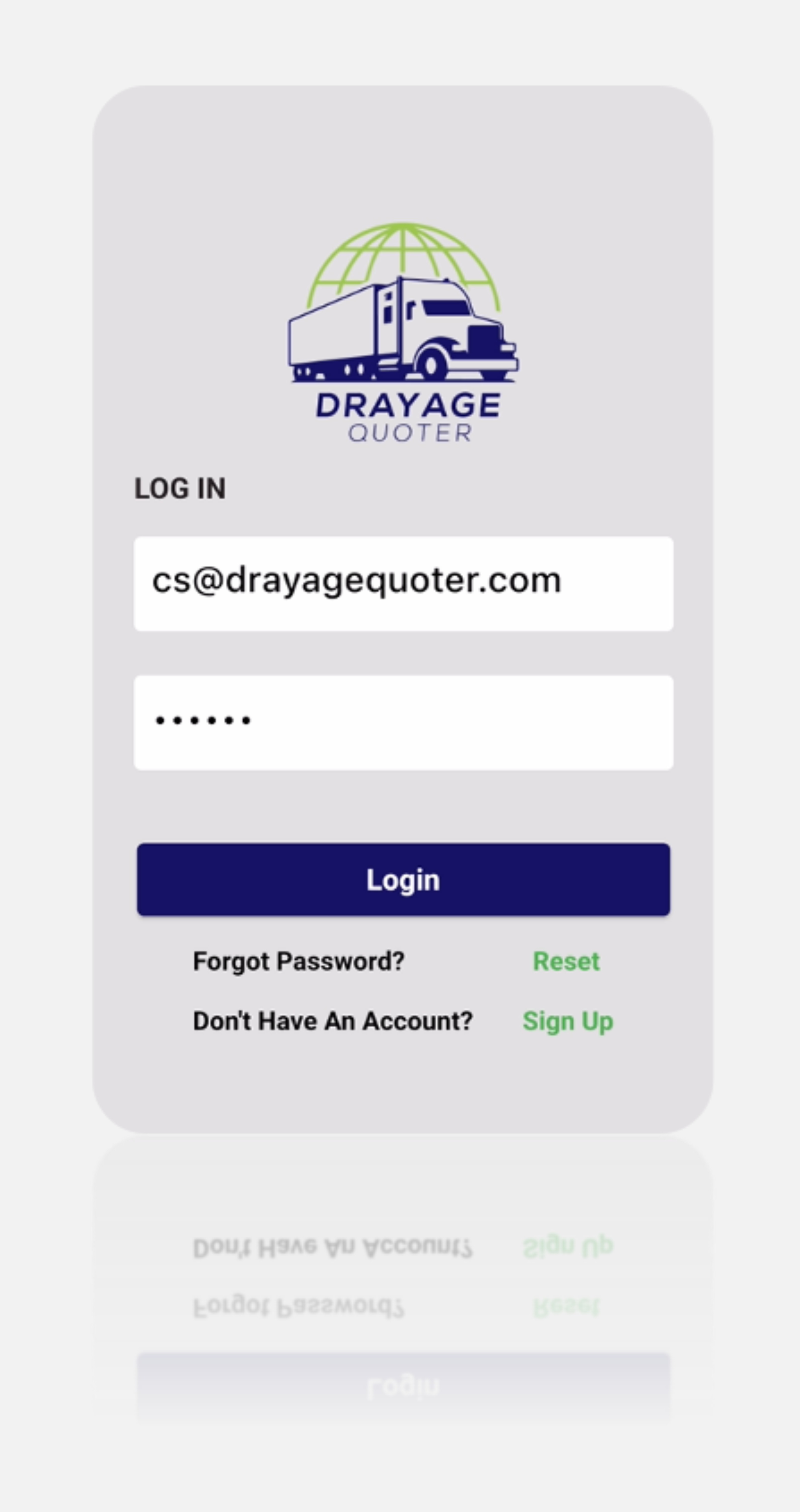
To log in to your Drayage Quoter mobile application account, follow these steps:
- Open the Drayage Quoter mobile application on your device.
- Click on "Log In" and enter your registered email and password.
- Upon successful authentication, you will be directed to the user dashboard.
🔍 User Dashboard
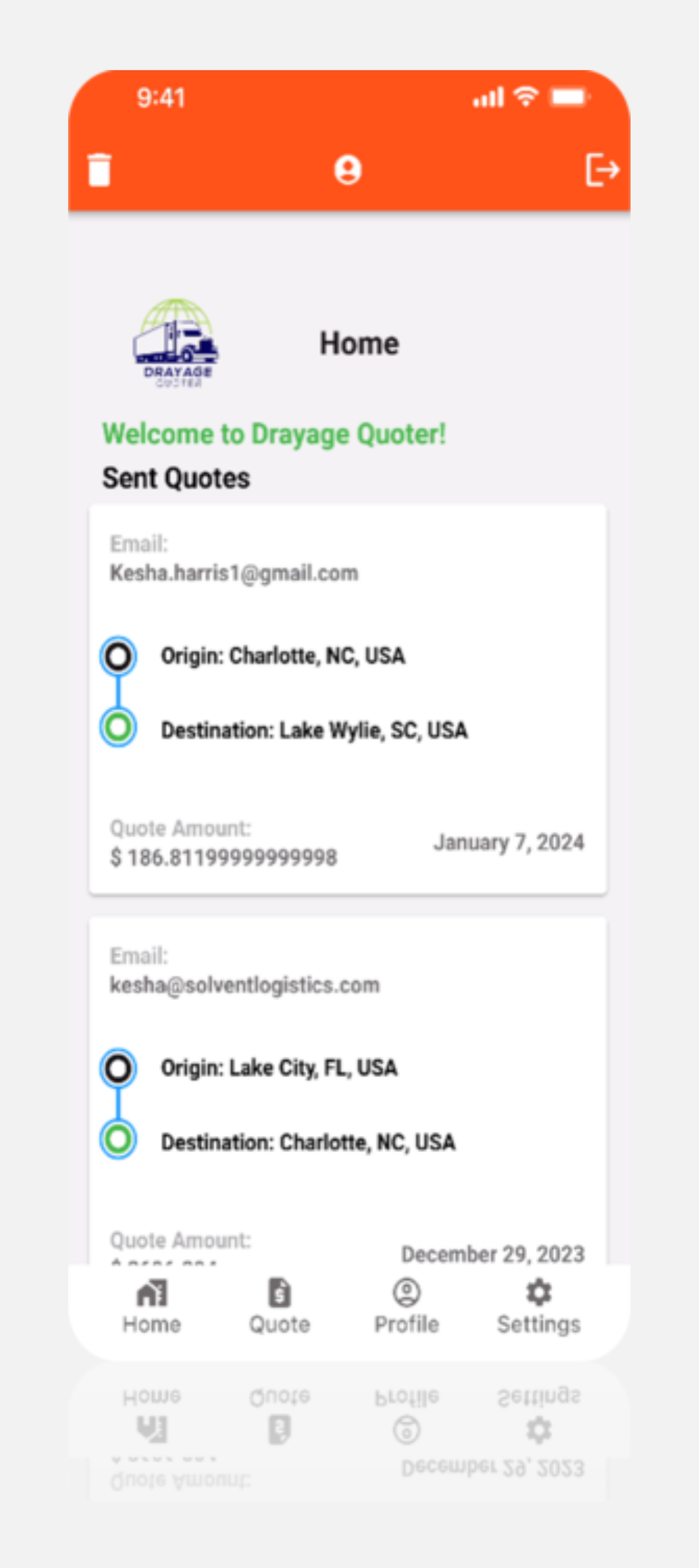
The user dashboard is your central hub for managing all aspects of your drayage requests. It provides an overview of your recent activities and facilitates quick access to essential features.
Overview of the Dashboard
Upon logging in, you will see an overview of your recent quote requests. The dashboard provides real-time updates on the status of your requests.
Navigating the Dashboard
Use the navigation menu on the bottom to access different sections of the application. The menu provides links to features such as Home, Sending Quote Requests, Profile Setup, and Settings.
👤 Setting up Profile
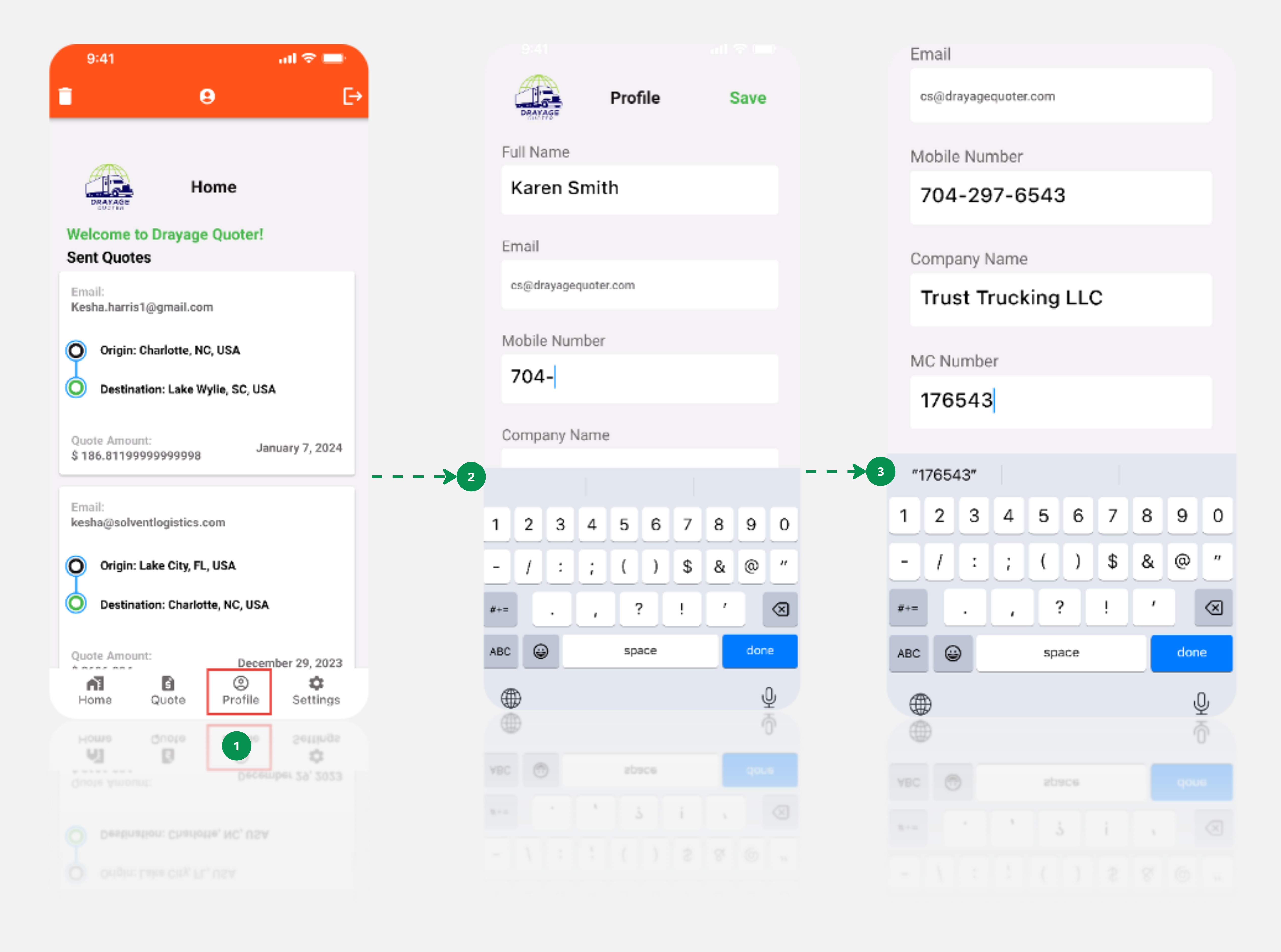
At the bottom menu clicking on the Profile option will help you create your profile. This page is very important because this is the information that will be sent to your customer when you send your quote.
- Enter your Full Name
- Enter Email Address
- Enter Mobile Number
- Enter Company Name
- Enter MC Number
- Click “Save”
Tip
Once you click save on this page? You will not be able to re-enter your Company Name or MC Number. Make sure it's correct and then hit save.
⚙️ Settings ↵
⚙️ Settings
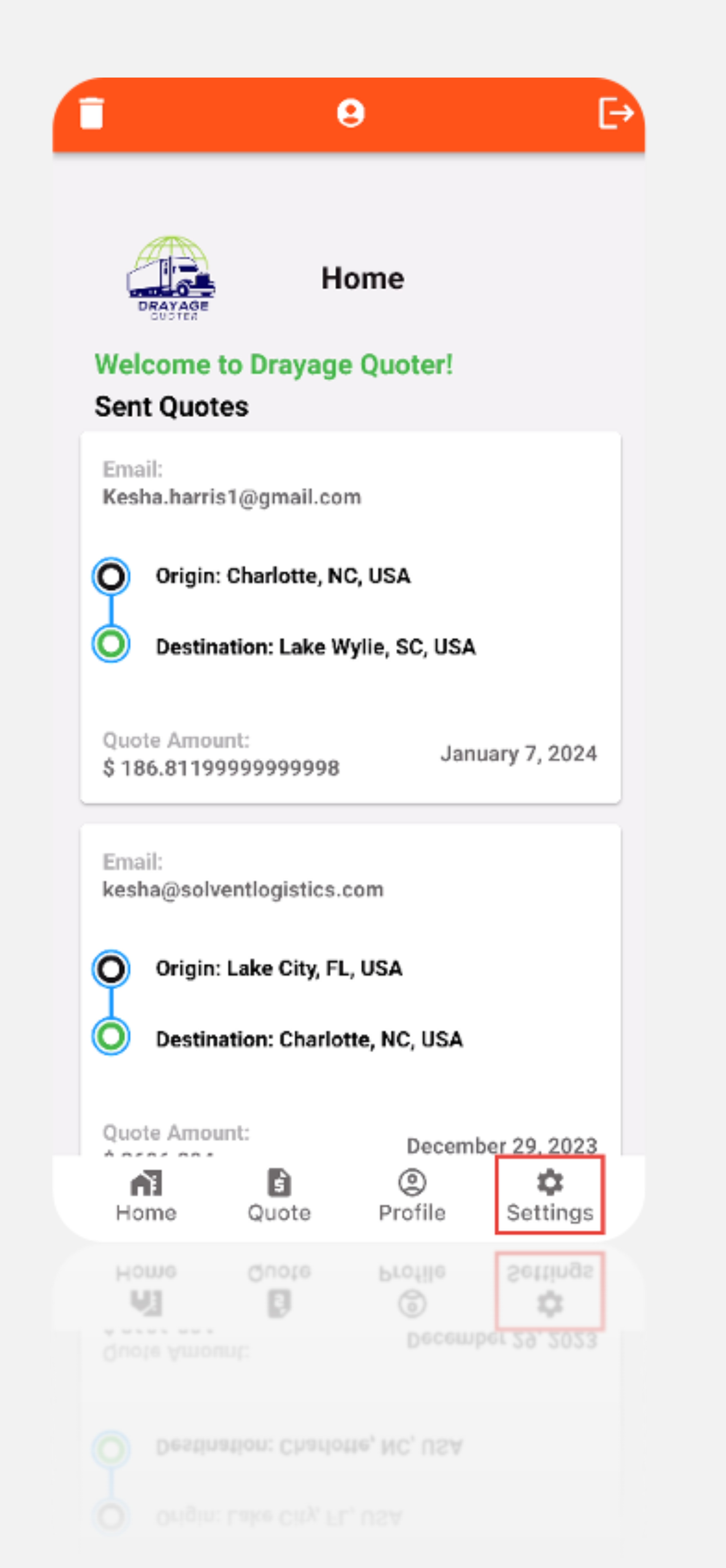
Now that our profile is successfully configured within the app, let's delve into the “Settings”. Please locate and click on the "Settings" option situated in the bottom right corner. The settings page holds paramount importance, as it plays a direct role in shaping the calculation process for your quotes.
The adjustment of these settings is essential because the numerical values entered here serve as the bedrock for determining the accuracy of your quotes.
It’s crucial to note that these values can vary among carriers. The settings should match your company’s standards for Rate per Mile, Fuel Surcharge Percentage, and Miles per Gallon.
- Fuel Surcharge: Fuel surcharge is the rate charged to supplement fuel costs.
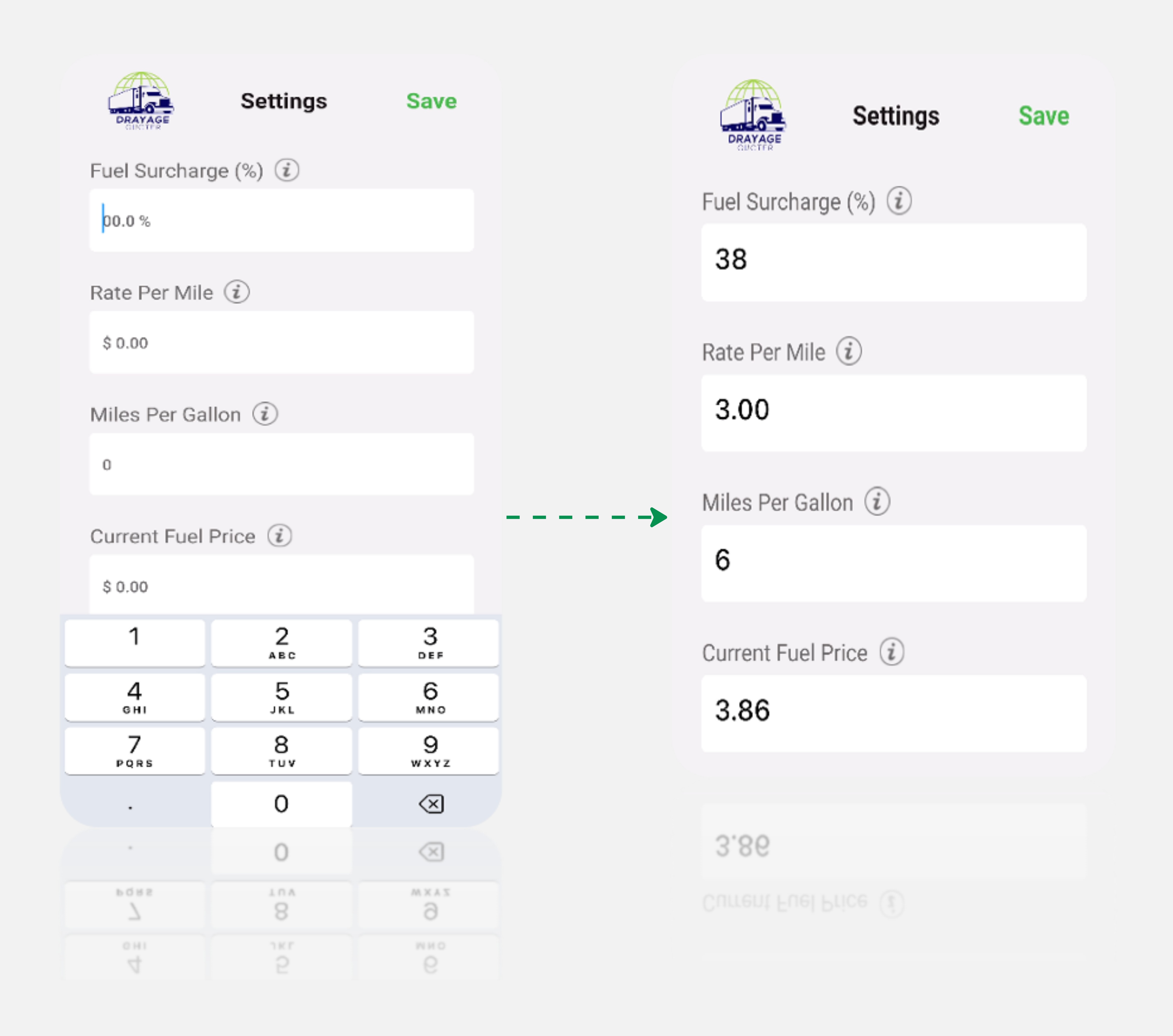
- Rate per mile: is the charge applied for each mile traveled.
- Miles per Gallon: Number of miles your tractor burns per gallon, i.e. 6 miles per Gallon.
- Current Fuel Price: Current price at the Pump. This should be kept updated as fuel prices change frequently.
Given the dynamic nature of fuel prices, it’s advisable to revisit your settings periodically. This ensures that the values you’ve entered align with the prevailing conditions at the pump, maintaining accuracy and relevance in your quoting process. Regularly tweaking these settings allows you to adapt to changes in fuel costs and ensures that your quotes remain reflective of your current conditions.
🚛 Accessorials
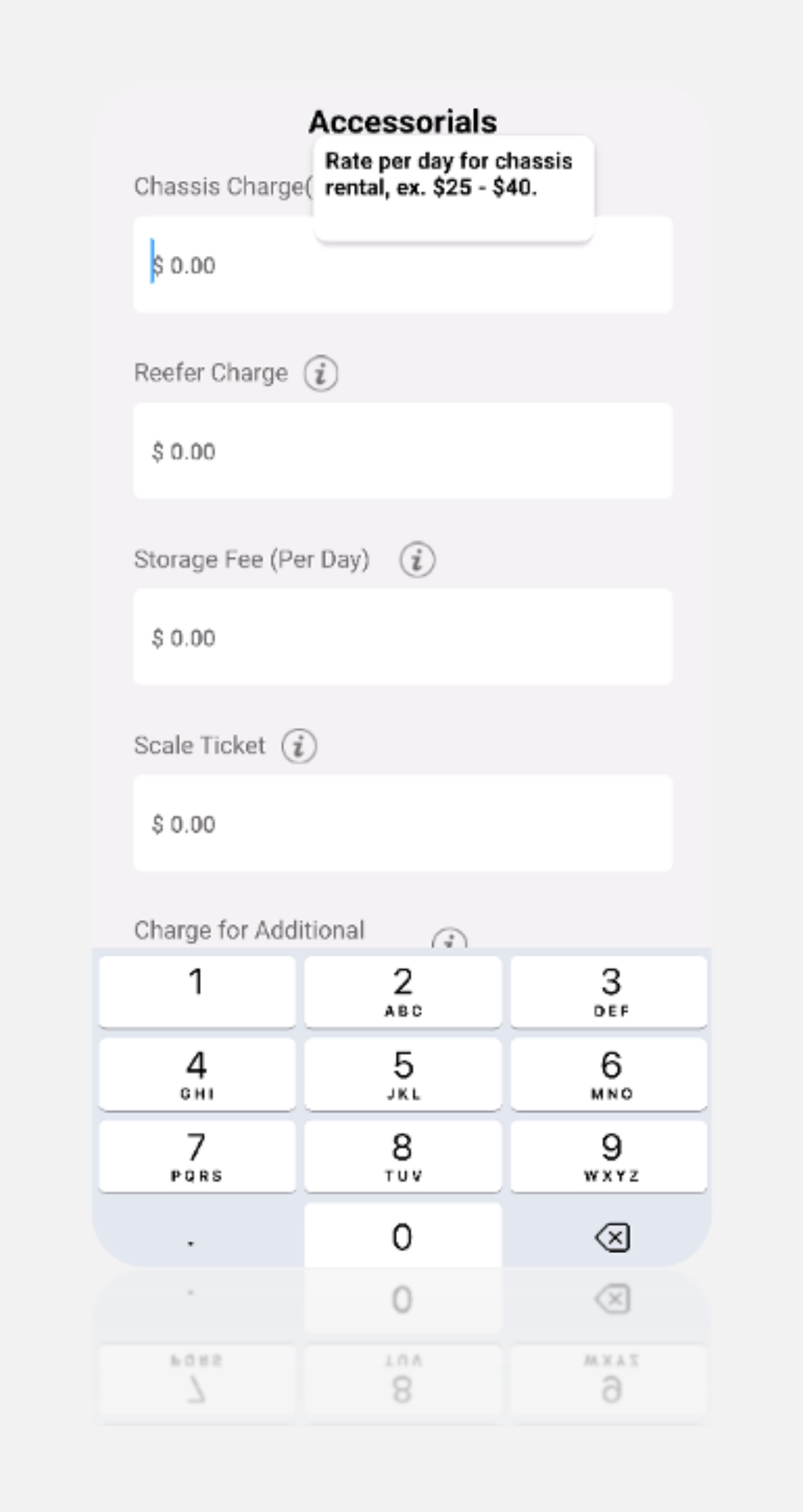
Moving on to accessorials, the specifics and associated rates are contingent on your company's standards. These figures can significantly differ among carriers, particularly in the case of chassis rentals. Here, we will outline the accessorials charges that you can apply, but keep in mind that these may vary based on the company's policies.
Chassis Rental Fee
You can define the fee which covers the daily rental cost for the chassis, essential for transporting containers. For e.g. at $40 per day, it ensures that your logistics operations have access to the necessary equipment.
Reefer Fee
This Fee is charged when using hauling a refrigerated container for transportation.
Storage Fee
This charge is accessed for storing a container on your yard while awaiting the delivery date. If you’re holding a container on your yard and charging the customer for storage.
Scale Tickets
This charge is for scaling a container. You can configure a charge (for e.g. $20) which covers the cost associated with obtaining scale tickets, which are often necessary for regulatory compliance and accurate billing.
Charge for Additional Stops
This charge covers additional stops required for delivery. A charge (let’s say $50) is applied when there are multiple stops during a shipment delivery.
Detention Pay
This pay is accessed to cover extended loading and unloading times. The detention fee applies after the first 2 hours of waiting time.
Layover Charge
This charge is accessed to cover overnight waiting time to be loaded or unloaded. This fee compensates the carrier for extended use of equipment and overnight lodging facilities.
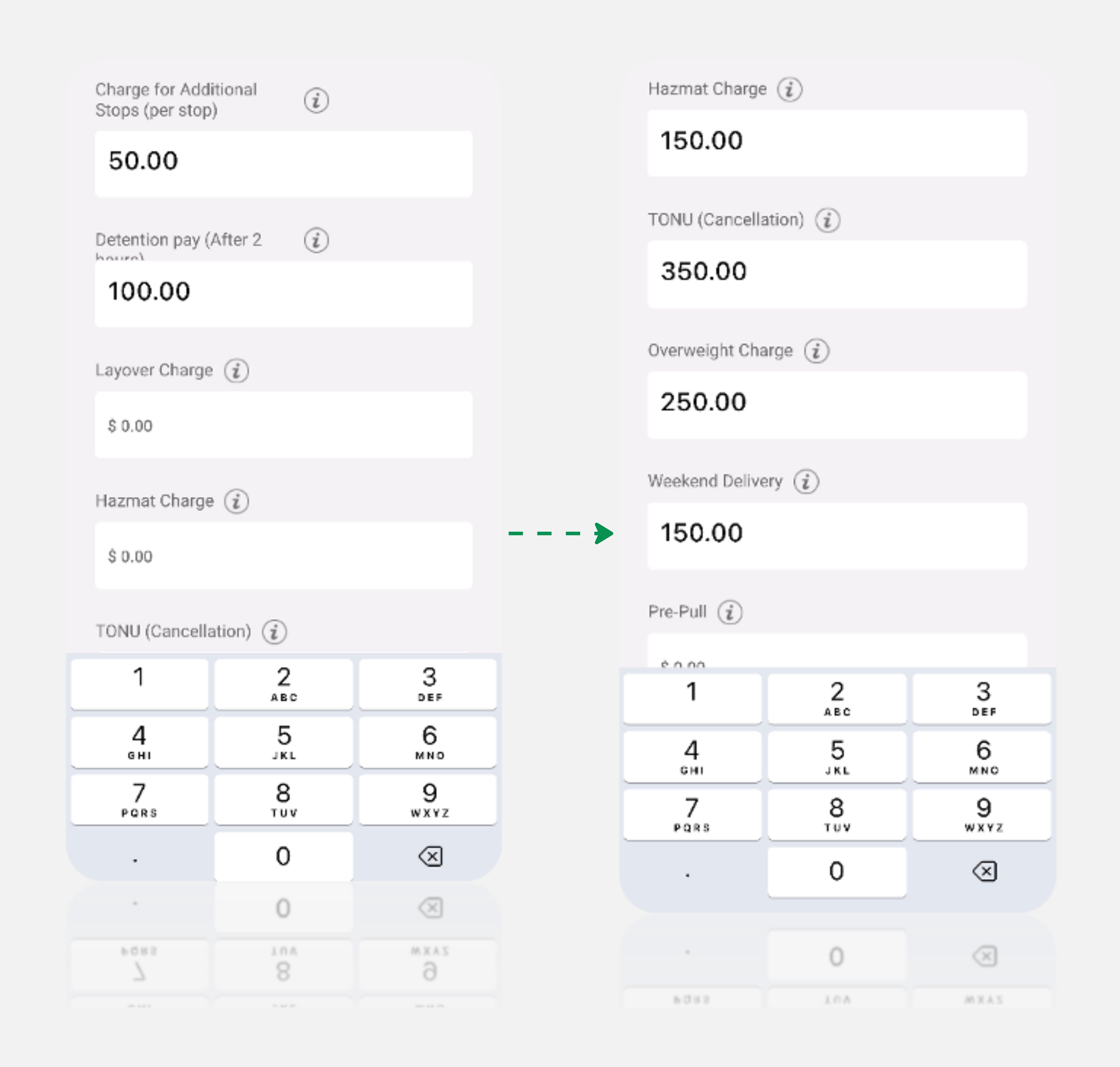
Hazmat Charge
This charge is accessed for hauling hazardous material. Hazmat fee is applied for handling hazardous materials, reflecting the increased precautions and regulations associated with transporting such goods.
TONU or Cancellation Fee
This Fee is charged when the customer cancels a shipment within in 24 hrs or Orders the Truck but then cancels the shipments. Cancellation Fee is charged in cases of last-minute cancellations, compensating for the operational adjustments required.
Overweight charge
The overweight charge is applied when a container exceeds the maximum allowable weight rendering the truck and trailer to be over 80,000 lbs. This fee covers the additional costs and considerations associated with transporting and handling overweight shipments.
Weekend Deliveries
This charge is accessed for shipments scheduled for delivery over the weekend. An additional fee applies for deliveries scheduled during weekends, compensating for the operational adjustments required for non-business days.
Pre-Pull Fee
This fee is charged when a container is pulled from the terminal 24 hrs prior to the delivery date. Carriers many times pre-pull containers to help their customer avoid terminal storage fees. If the carrier’s delivery time is early morning, it may be beneficial to pull the container ahead of time.
Lift Fee
This fee is charged by the railways to lift the container off of a privately owned chassis. This Fee is passed along to customers to offset operational costs.
Port Congestion Fee
This covers the extended hours and potential delays at the terminals, reflecting the additional resources required during peak periods.
Toll Charges
This charge is accessed to offset toll charges along the route to delivery. If tolls are incurred during delivery, the toll amount, is charged to customer to cover the expenses.
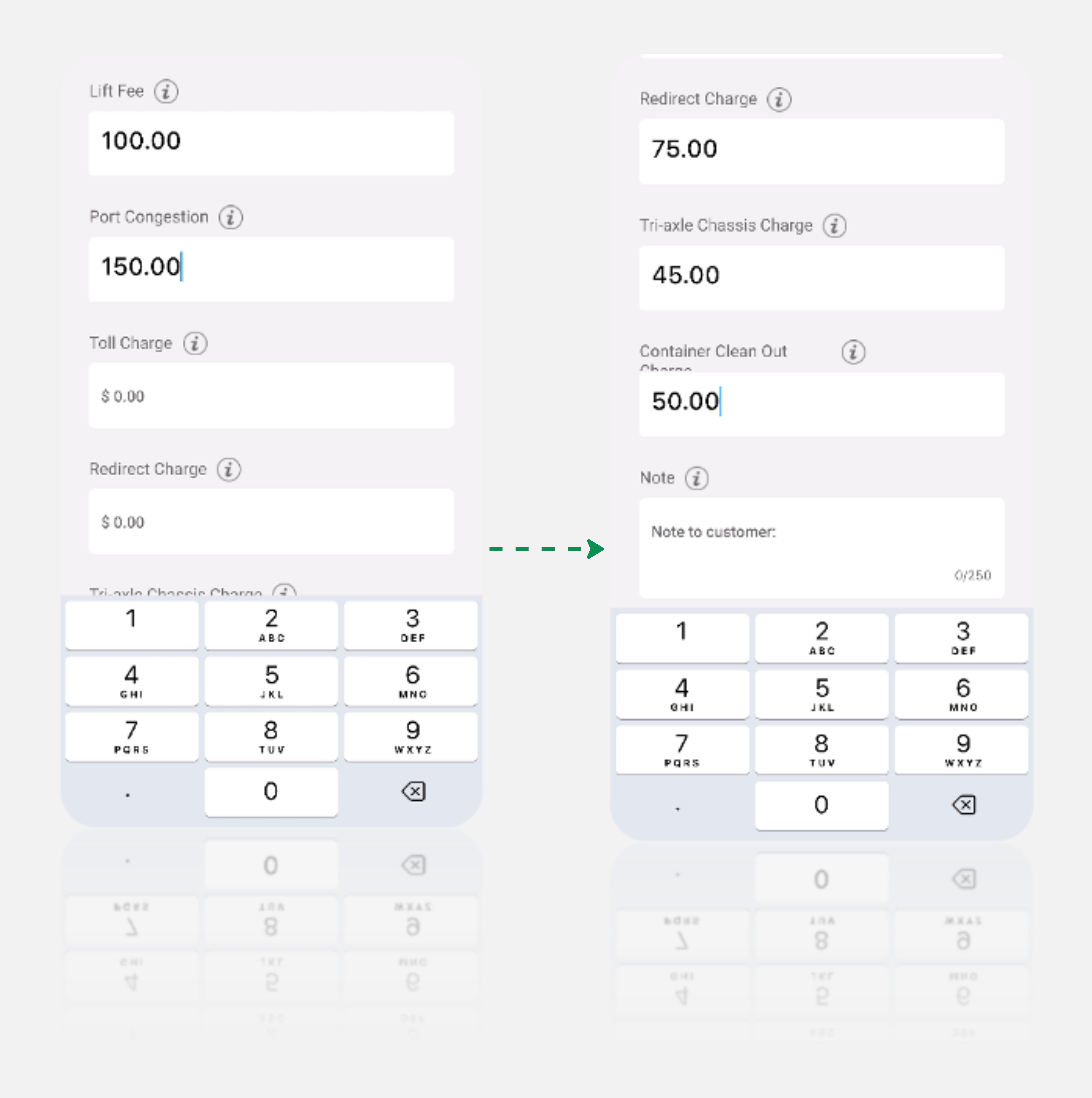
Redirect Charges (Change of Delivery Location Fee)
This charge is applied when the delivery destination differs from the original customer instructions, covering any additional fuel and scheduling required.
Triaxle Chassis Fee
This chassis fee is charged per day. It covers the use of a triaxle chassis, which is a specialized chassis type that may be harder to come by or more expensive to maintain.
Cleaning Out a Container
This fee is charged to the customer for cleaning cargo debris from an empty container. The is charged for compensating the carrier for the labor and resources involved.
Additionally, the capability to add customized notes to the customer, such as "All quotes are valid for 10 days. This allows for transparent communication of specific terms or conditions. This ensures that customers are aware of any unique considerations associated with the provided services.
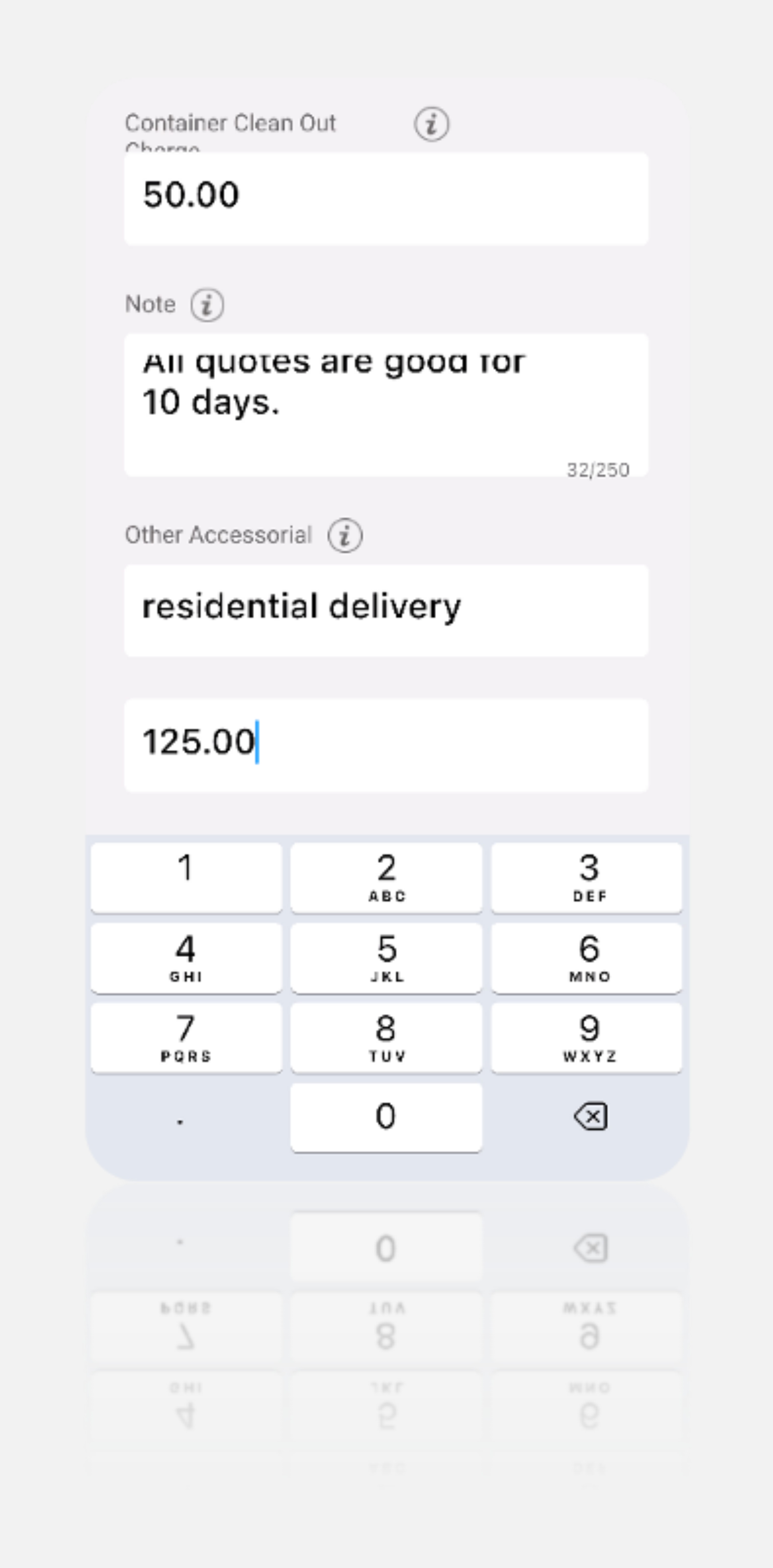
If you have an accessory that isn't listed here, feel free to add it. For example, if you wish to include residential delivery, you can add this under “Other Accessorials” which will be added to your quote.
Now all applicable accessorials and our company policies have been entered, please verify the entered data and hit save, settings page is now complete
Ended: ⚙️ Settings
Ended: 💼 Account Setup
Sending a Quote
Sending a quote requires the carrier to enter pickup/delivery locations, and accessorials and then review the Quote Summary before entering the customer’s email and sending.
Now that we’ve configured our profile and input our settings in the app, it’s time to generate a quote. The primary functionality of the Drayage Quoter application is for Carriers to respond to drayage quote requests from Customers. Navigate to the 'Quote' option at the bottom center of the screen.
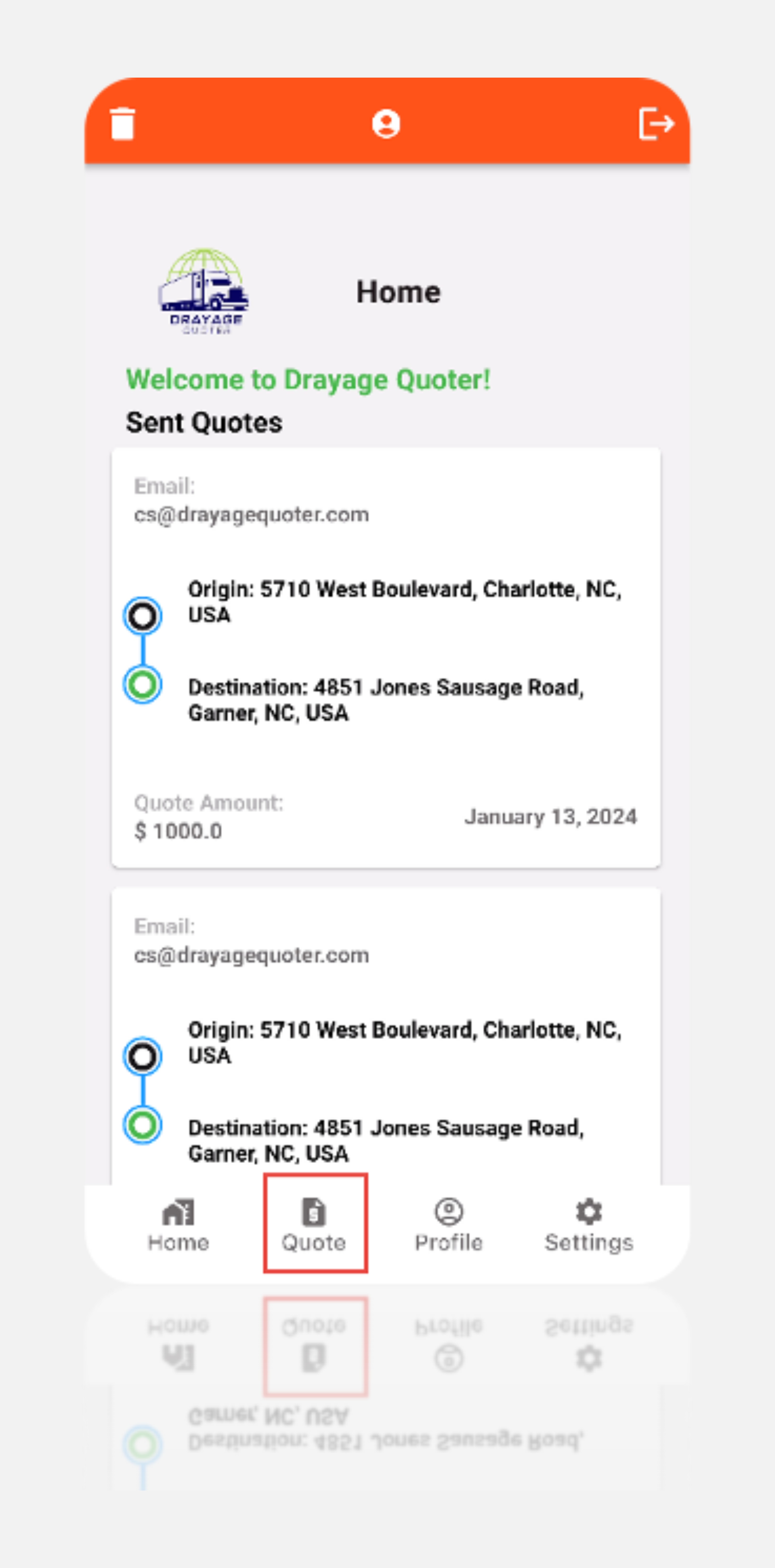
On this page, you can specify your pickup and delivery locations. The system calculates the total miles for this trip.
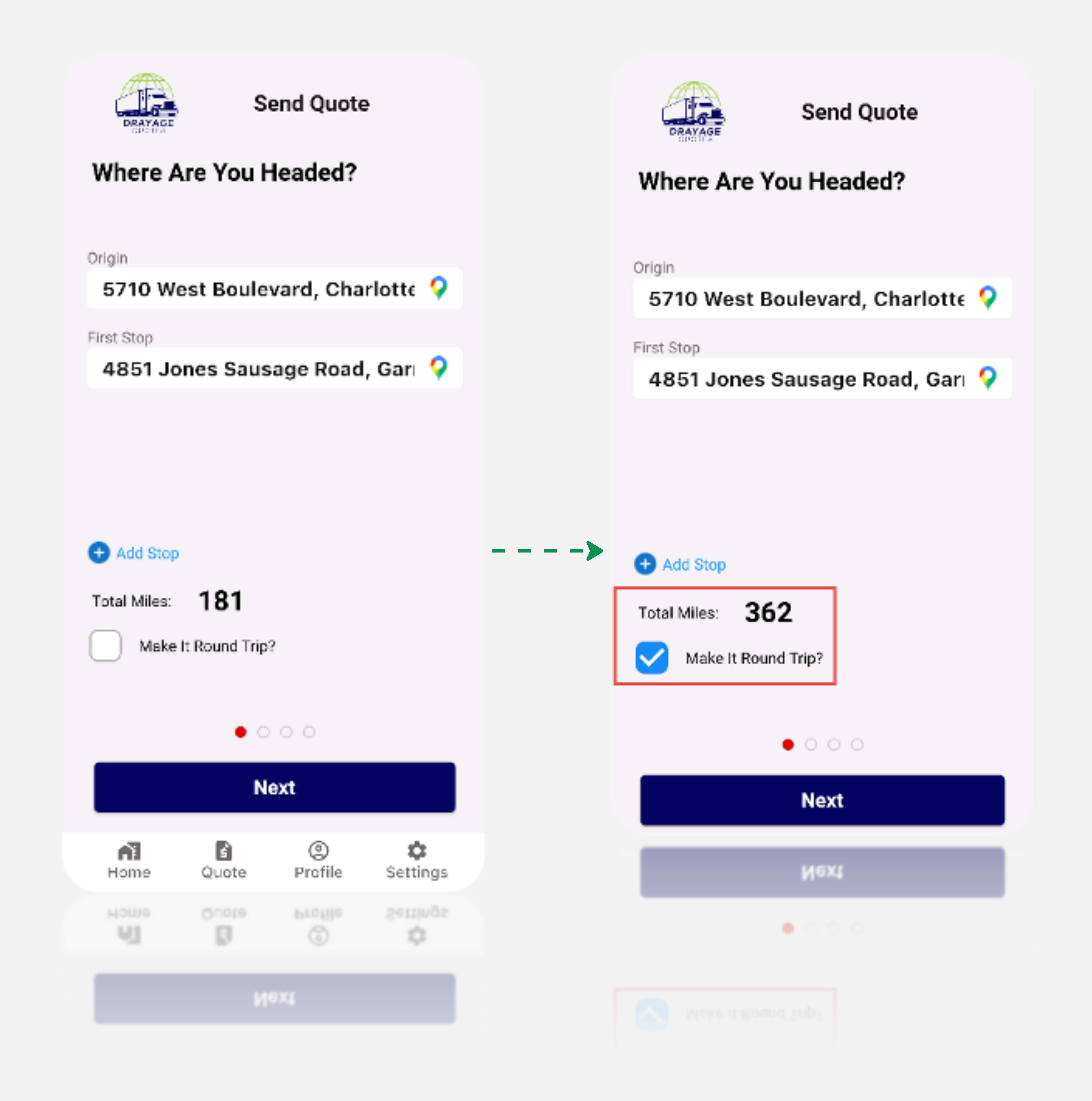
In many drayage scenarios, you often need a round trip. To account for this, ensure to click on 'Make it a Round Trip. Enabling this option will double the miles, factoring in both the journey to Jones Hospital and the return to West Boulevard via Join Sausage Road.
You can also add multiple stops by clicking on the “Add Stop” option on the screen. After clicking the button system will request you to add address from the address drop down.
Once you've verified the details and everything looks good, proceed by clicking 'Next.'
Adding Accessorials to Your Quote
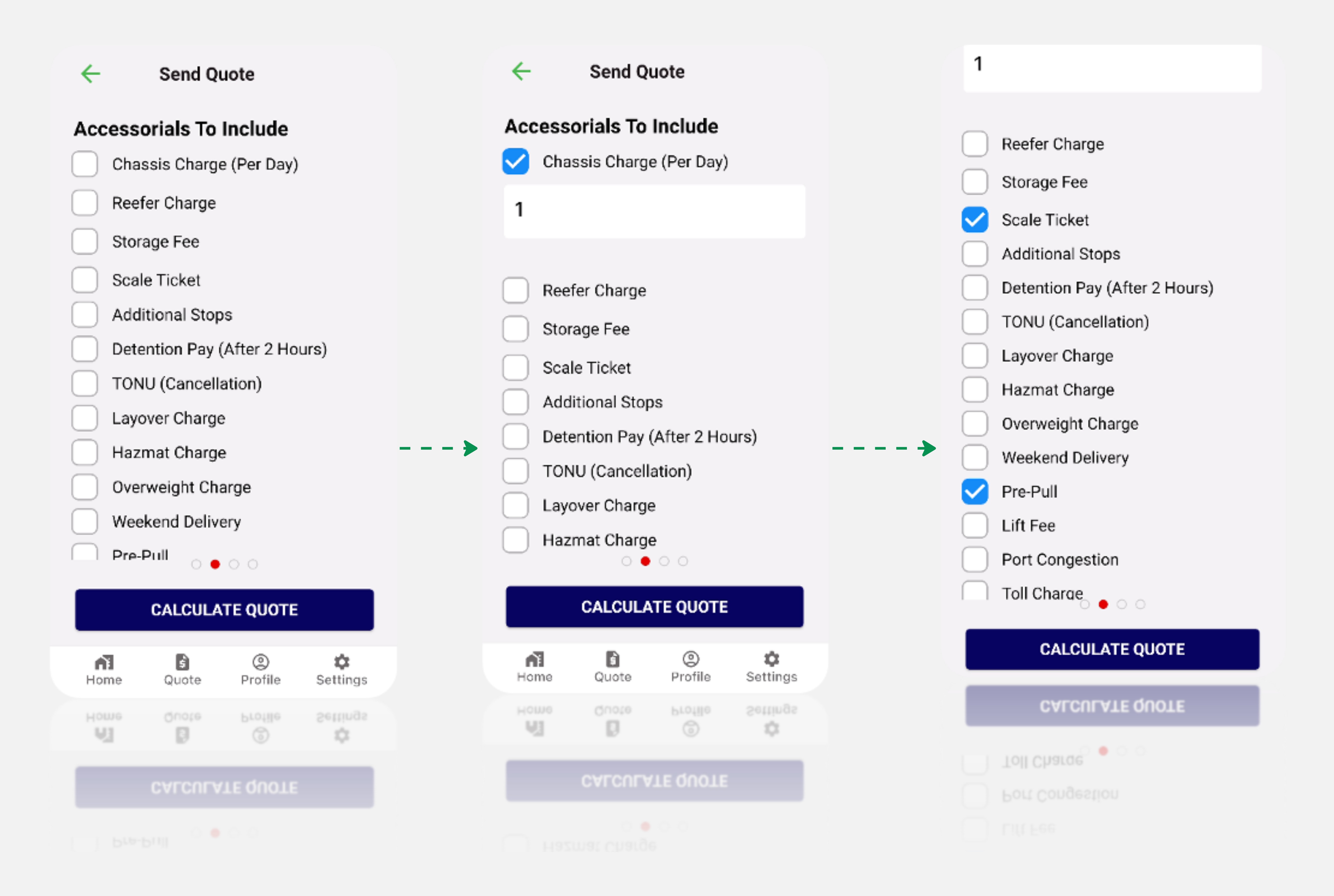
This section empowers users to enhance their quotes by including essential accessorials personalized to their specific shipment needs. Follow these steps to effortlessly integrate accessorials into your quote, This page provides you with the option to customize your quote with additional features before sending it to customer. Choose accessorials relevant to your shipment.
Remember
On the settings page, you've previously assigned rates to each accessory. These rates will be utilized to calculate the cost of each accessory based on your specified quantities.
Confirm that the chosen accessorials and quantities align with your shipment requirements.
If you are satisfied with your accessory selections, proceed to calculate your quote by clicking the 'Calculate Quote' button. The system seamlessly integrates accessory costs into your quote based on the rates configured in your settings. Take a moment for a final review to ensure accuracy before proceeding. If everything appears in order, initiate the quote calculation process, and the system will generate a quote reflecting the base cost along with any additional charges associated with the selected accessorials. This user-friendly process ensures a hassle-free and accurate integration of accessorials into your quote, allowing for a customized and detailed representation of your shipment costs.
Quote Summary Page
The Quote Summary page serves as a pivotal step where you review and confirm the details to be communicated to your customer. Ensuring accuracy is essential for transparent quoting.
Here's a step-by-step guide:
Line Haul Calculation
Understand that Line Haul is fundamental, calculated by multiplying the mileage with the rate per mile configured in the Settings. This forms the core of transportation costs.
Fuel Surcharge
The Fuel Surcharge is a critical component, calculated as the Line Haul multiplied by the Fuel Surcharge rate set in the Settings. This accommodates fluctuations in fuel prices.
Accessorials Breakdown
Accessory costs, including items like chassis, scale ticket, and pre-pooling, are transparently presented for your consideration.
Total Quote Amount
The Total Quote reflects the sum of Line Haul, Fuel Surcharge, and accessory costs. In the example, it's $1189.08.
Total Miles and Estimated Fuel Cost
The Total Miles for the journey are specified. The Estimated Fuel Cost is derived by multiplying miles by the fuel rate configured in your Settings, resulting in $956.19 for 362 miles at a rate of $2.809.
Potential Profit Calculation
Potential Profit is computed by deducting the Estimated Fuel Cost from the Total Quote Amount. In this instance, the potential profit is $950.
Fuel Rate Consideration
Emphasis is placed on maintaining an up-to-date fuel rate in your Settings for accurate fuel cost estimations.
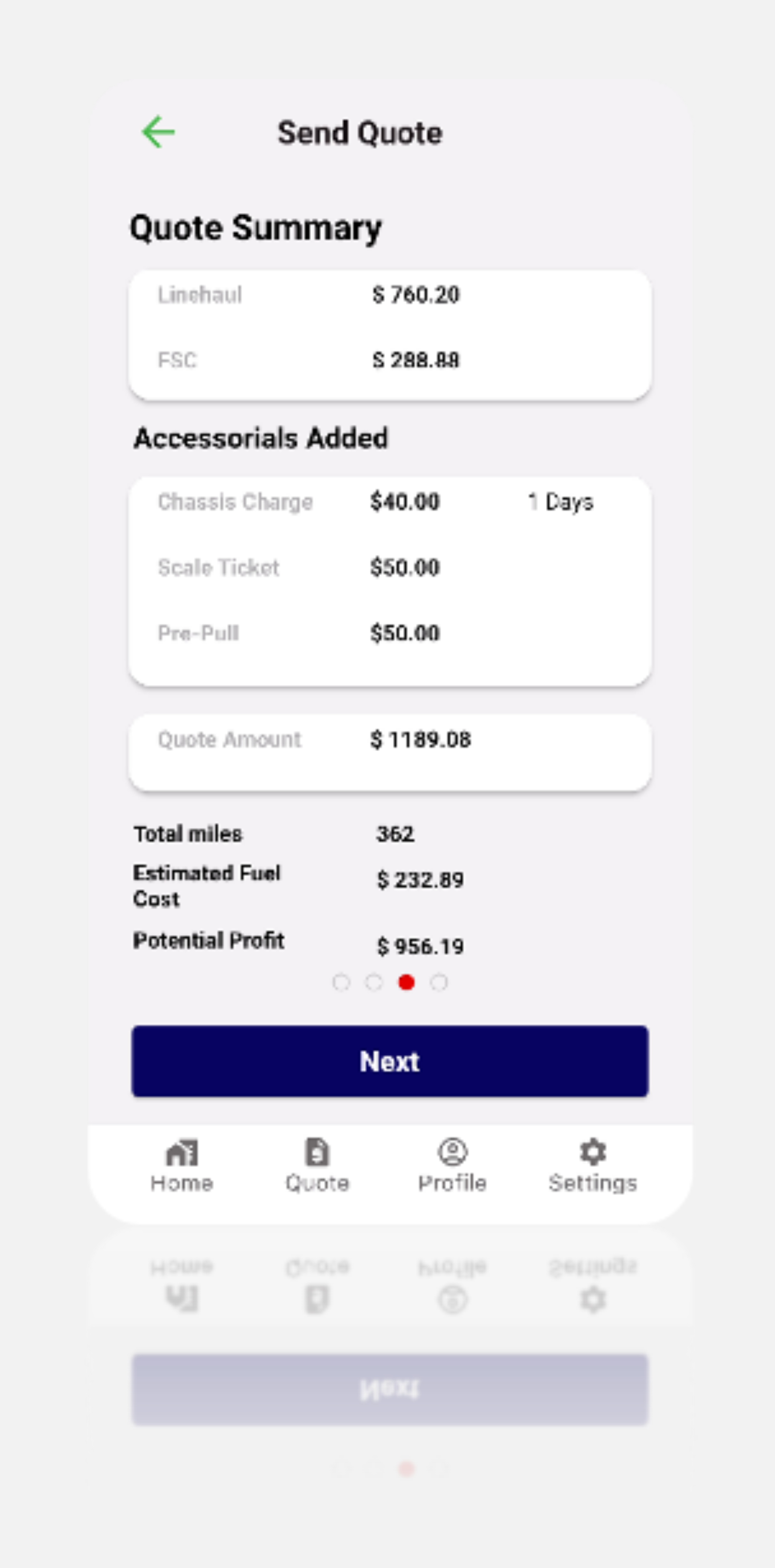
By thoroughly reviewing this Quote Summary, you ensure precision in the information conveyed to your customer. This step fosters transparency, aids informed decision-making, and supports profitability in your transportation service.
All In Rate Feature
Upon reaching this stage, you have the option to proceed to the next step for sending the quote to your customer. However, should you wish to offer a flat rate to the customer, follow these steps:
- If you want to offer a flat rate to any particular customer, click on "All in Rate".
- Upon clicking "All In Rate," you can enter the specific flat amount you want to charge to customer.
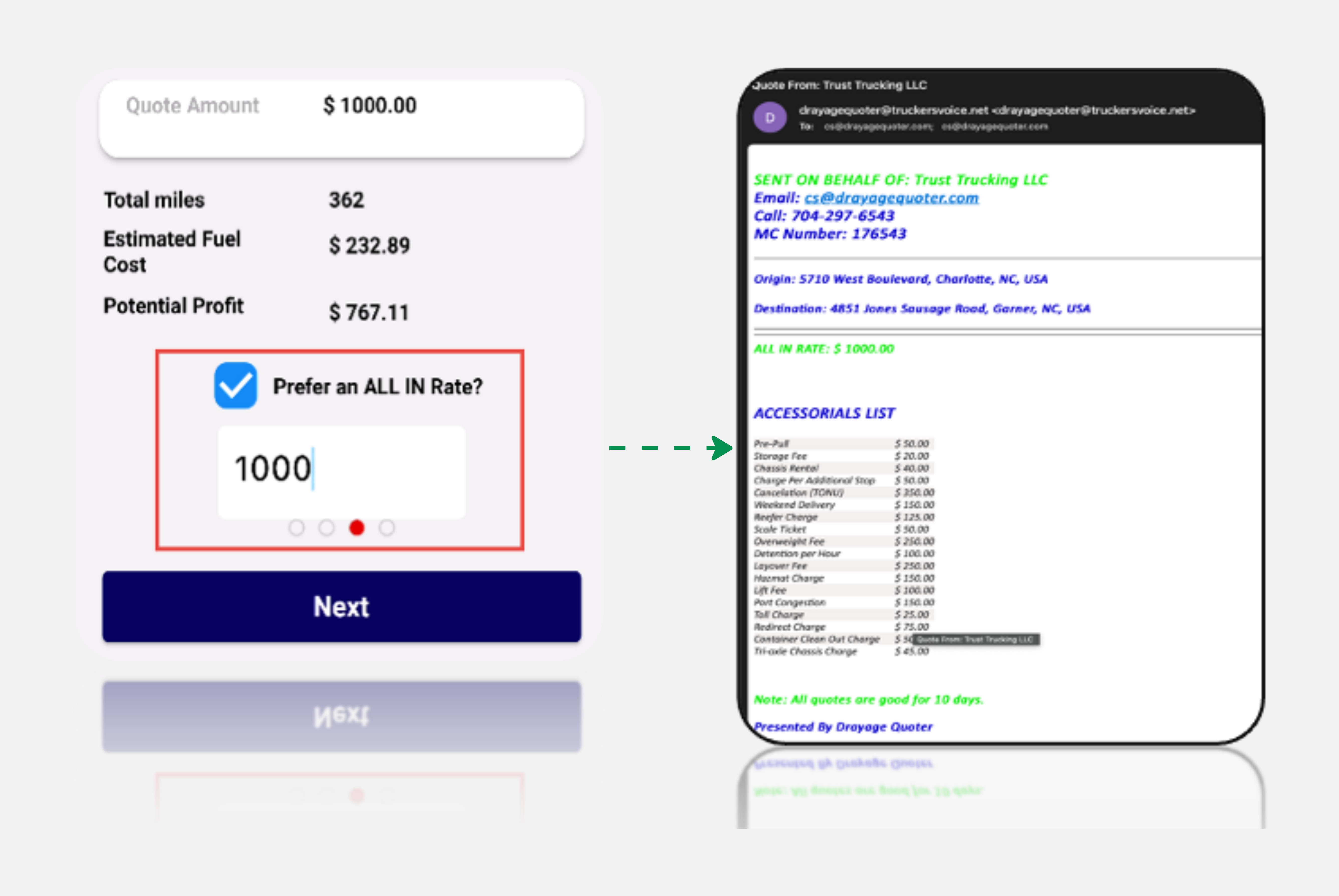
As a result, the system will adjust the total quote to reflect the flat amount. When you proceed to send the quote to your customer, it will now show the flat amount ($1000) to customer. If you decide not to offer a flat rate, simply unselect the "All In Rate" option, this will then show the original calculated amount of the quote.
Tip
This feature enables you to adapt your pricing based on the specific circumstances or relationship with the customer, enhancing flexibility in your quoting process.
Proceeding to Next Step, once your decision is made, click "Next" to continue with the chosen pricing strategy, whether flat or at the standard rate.
Creating a Quote with Multiple Stops
The inclusion of multiple stops in quotes serves as a strategic approach to enhance efficiency, reduce costs, and provide a more customer-centric service. One key advantage is the ability to plan routes more effectively, optimizing the movement of goods by consolidating pickups and deliveries. This results in a streamlined transportation process, minimizing travel time, and maximizing the utilization of resources. If more stops are needed, click "Add Additional" at Quote page and provide the necessary details.
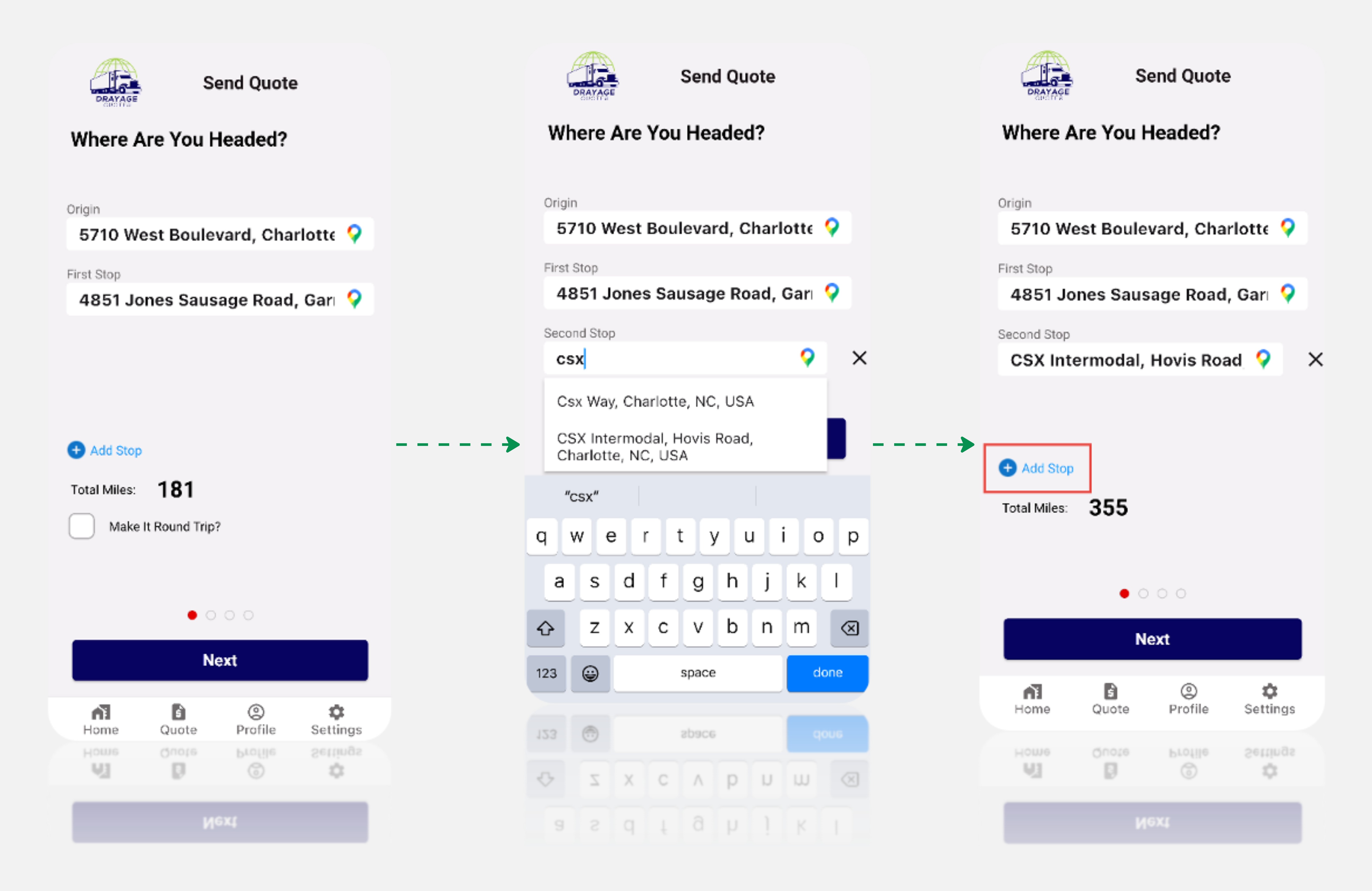
Confirm the accuracy of the stops, ensuring all pickup and delivery locations are correctly entered. If Carrier wants to remove any stops then they can do so by clicking on the ‘x’ next to the addresses. The system automatically calculates the total miles. Examine the details, including estimated fuel costs and potential profit. If satisfied, proceed by clicking "Next."
This user-friendly process enables the creation of a comprehensive quote for shipments with multiple stops.
Tip
Ensure accuracy in details and accessorials, review the breakdown, and confidently send the quote to your customer for a transparent and informed quoting experience.
Proceeding to Next Step, once your decision is made, click "Next" to continue with the chosen pricing strategy, whether discounted or at the standard rate.
Sending Quote to Customer
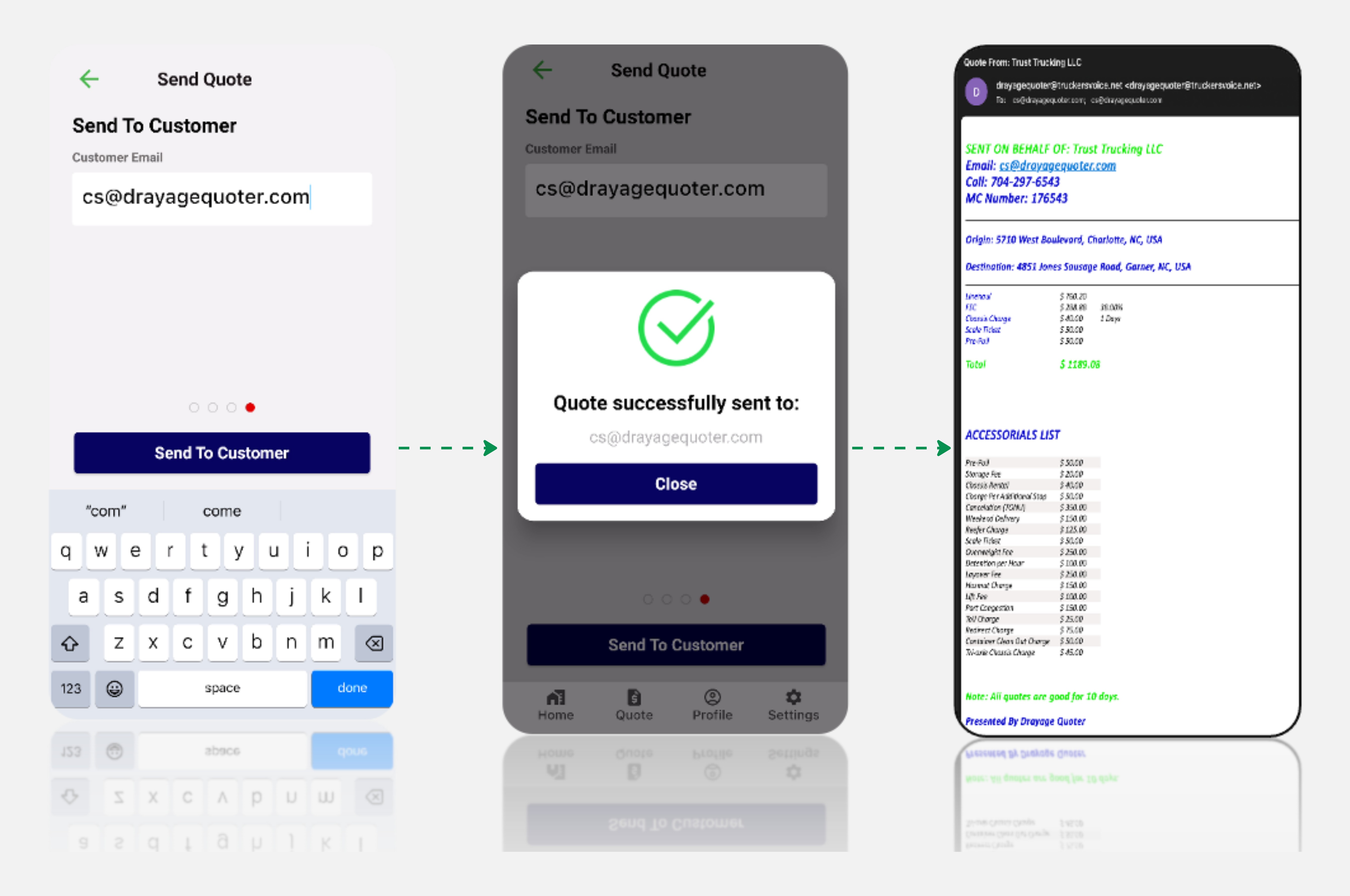
On this page, enter the customer's email address to send the quote. Accuracy is crucial, so double-check the email address to ensure successful delivery.
After entering the email address, click "Send To Customer"
A confirmation message will indicate that the quote has been successfully sent to the customer. Carrier will receive an email confirmation to your provided email address in your profile, serving as a record of the quote sent.
Tip
Ensuring precision in the email address is vital to guarantee the customer receives the quote promptly.
This straightforward process concludes with a confirmation of the sent quote to both the customer and your registered email address.